BASH SCRIPTING
- Bash is a powerful work environment and scripting language
- Penetration Testers need to sharpen their bash scripting skills to automate many Linux commands
1 - INTRO TO BASH SCRIPTING
- A bash script is a text file containing several Linux commands that can be executed in terminal
- Let’s write an example
Hello Worldbash script
#!/bin/bash
# Hello World Bash Script
echo "Hello World!"
- First line has characters
#!calledshebangand a binary file/bin/bash. This line tells that this file should be run with/bin/bashwhen executing - Second line starts with
#. Every line starting with#is known as comment and is ignored by the interpreter - Third line is the command that is going to be executed which prints ‘Hello World!’ to the terminal
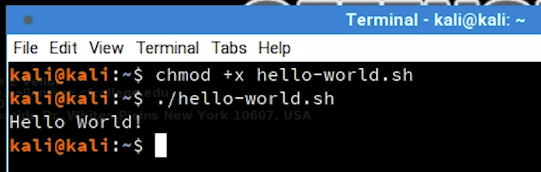
For execution we should do several things
- Give execution permission with
chmodcommand - Then execute it with
./filenamenotation../indicates the current path
# Give execution permission
chmod +x hello-world.sh
# chmod is a command to change file permission
# +x is for adding execution permission to a file

# Executing the bash script
./hello-world.sh
2 - VARIABLES
- Variables are places to store data and use them later
- We can declare variables in several ways
- The simplest one is
name=value
first_name=Good
last_name=Hacker
- To reference and use a variable we preceed the variable with
$character
echo $first_name $last_name
Good Hacker
- It is better to give varialbes names in scripting way to make it easier to read
- Bash interprets certain characters in specific ways
- For example to put some space in our values we can not use them like this
greeting=Hello World
- Bash will interpret whitespace so we can not use it in out value
- To handle this we should put it in single quotes
''or double quotes""like this - Bash interpret single quote
''and double quote""differently - Every character inside single quotes
''are viewed literaly or string - Every character inside single quotes
''are viewed literaly or string except$,\, ` - Let’s see some examples for these stuff
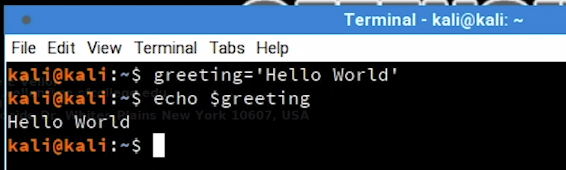
- Declare varialbe with single quotes
greeting='Hello World'
echo $greeting
Hello World
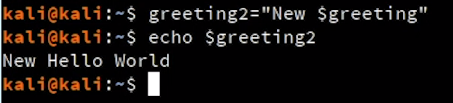
- Declare variable with double quotes
greeting2="New $greeting"
echo $greeting2
New Hello World
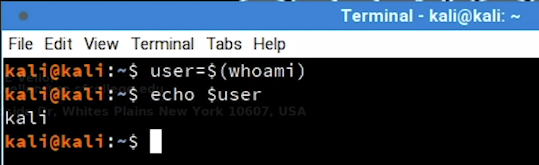
- We can store a command’s output into a a varialbe by putting the command in
$()
user=$(whoami)
echo $user
kali
- We can so example number 3 with backtick character ` however it is an older and deprecated method.
user=`whoami`
echo $user
kali
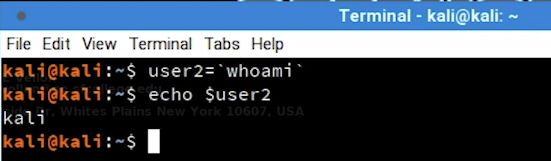
- Examples number 3 and 4 are called command substitution and it is done in s sub-shell
- Changing variables in the sub-shell will not alter variables in master process
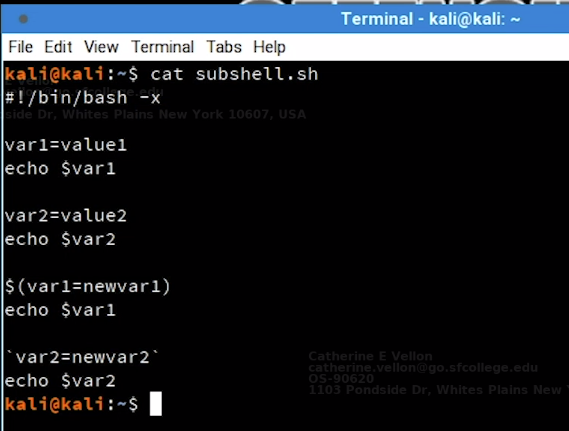
- Let’s see this in example number 5
#!/bin/bash -x
# -x adds additional debug output when executing

var1=value1
echo $var1

var2=value2
echo $var2

$(var1=newvar1)
echo $var1

`var2=newvar2`
echo $var2
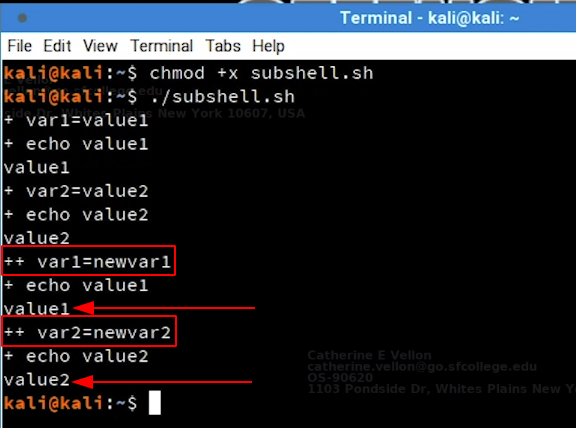
- The command being executed in the sub-shell is recognized with
++sign and the commands executed in current shell is recognized with+sign - As we can see variables
var1andvar2are not changed as we said before. - Because second declaration of
var1andvar2is inside sub-shell and did not change the values in current shell.
2.1 - ARGUMENTS
- We can use arguments in our bash script but it is not necessary
- We may use arguments in commands we run everyday for example
ls -l /var/log
# both -l and /var/log are arguments to ls command
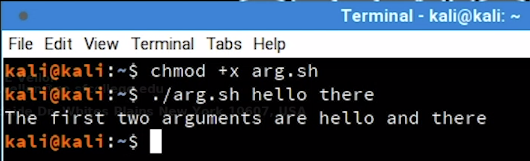
- In this example we will write a simple bash script that accepts arguments
#!/bin/bash

echo "The first two arguments are $1 and $2"
# $1 and $2 refers to the first and second argument of the script
# $0 refer to the bash script file name itselft
- Let’s run the script and see the results
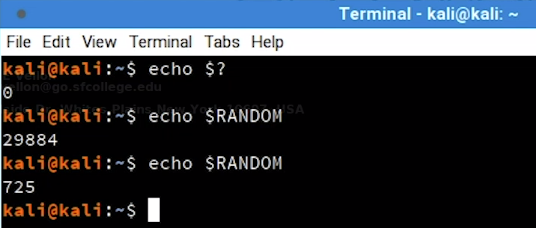
- There are number of other special bash variables for example
$? # which show exit status of last process
$RANDOM # which generates a random number
2.2 - READING USER INPUT
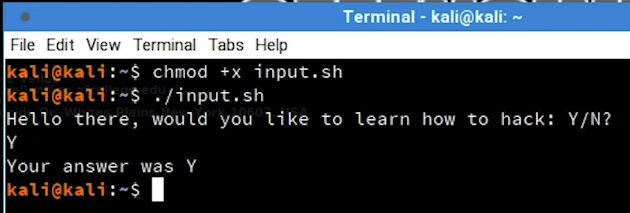
- We can read user inputs while the script is running with
readcommand - Here we have an example to read user input, assign it to
answervariable and finally print it
#!/bin/bash

echo "Hello there, would you like to learn how to hack: Y/N?"

read answer

echo "Your answer was $answer"
- Let examine another example with additional arguments for
readcommand
#!/bin/bash
# Prompt the user for credentials

read -p 'Username: ' username
read -sp 'Password: ' password
# -p is for prompt a text
# -s is for silent mode (not shows the characters)

echo "Thanks, your creds are as follows: " $username " and " $password

3 - IF, ELSE, ELIF STATEMENTS
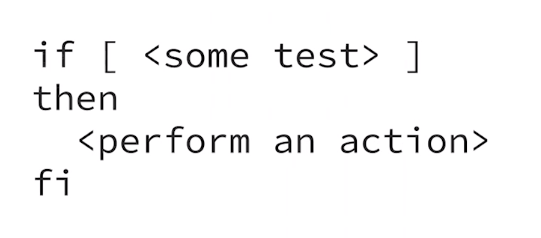
- Conditional statements allow us perform different actions based on different conditions
IFstatement is relatively simple. Pay attention to the syntax specially the spaces between[]
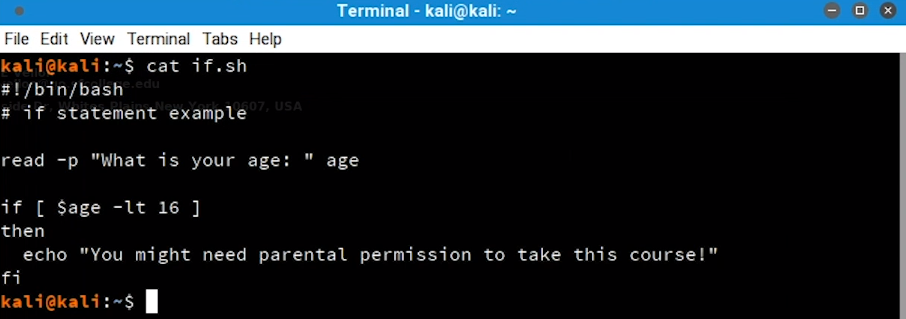
- Let’s take a look at an example
- Here we will take an input as age from the user and if the age of the user is less than 16 it will print a warning message.
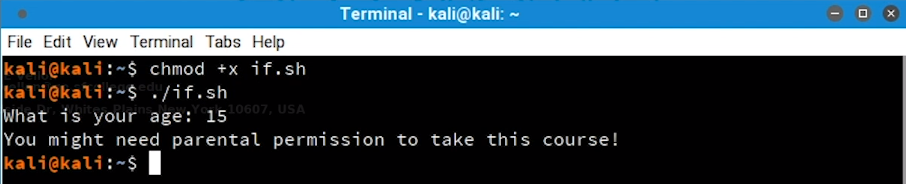
- The statement between brackets
[]are atestcommand - We can rewrite previous example with
testcommand like below:

- To perfrom differnt actions based on not metting the condition, we can use else statement
- The basic syntax is like below
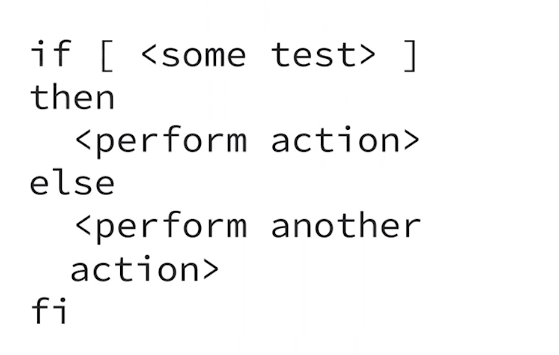
- Let’s see previous example with
elsestatement to do another action in terms of being older than 16:
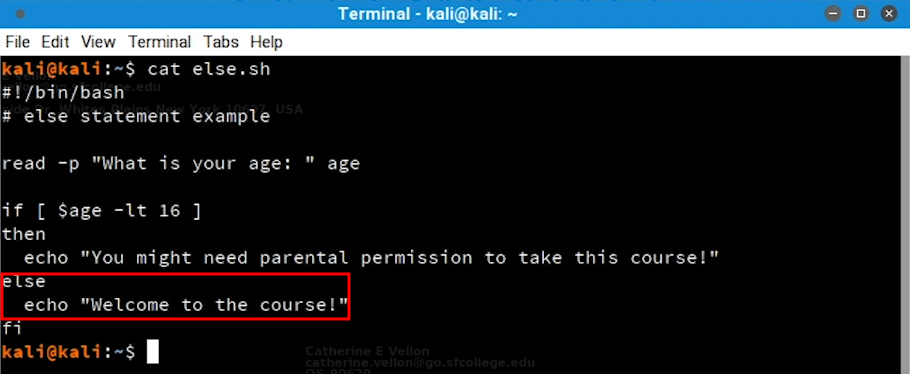
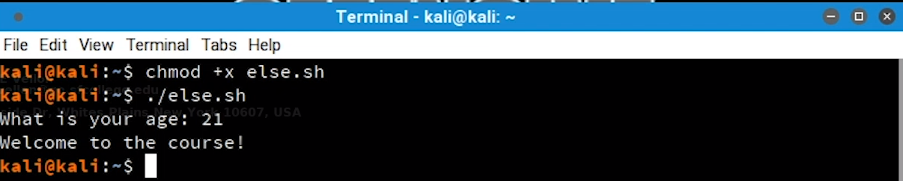
- As we see the
if/elsestatement allows to run just 2 code execution branches - We can use
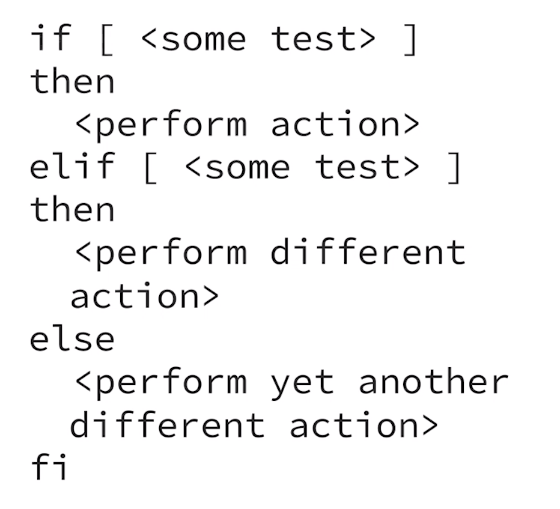
elifstatement to run several code execution branches with different conditions, The basic syntax is as below:
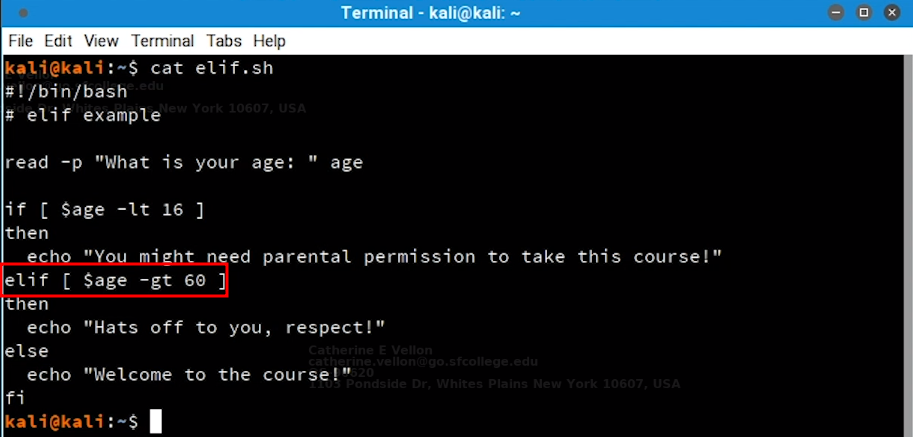
- Let’s extend our age example again to include
elifstatement
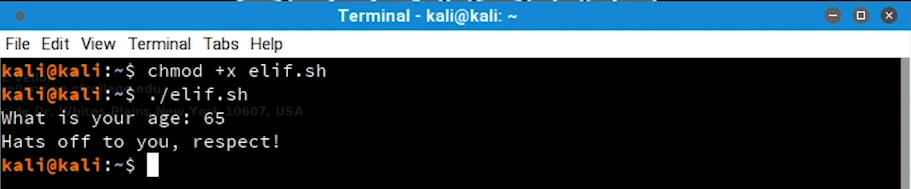
- Let’s run it to see the result
4 - BOOLEAN LOGICAL OPERATIONS
- Boolean operators may seem a bit mysterious
&and| - We use these operators in command line when we want to pipe
|commands
- First of all the
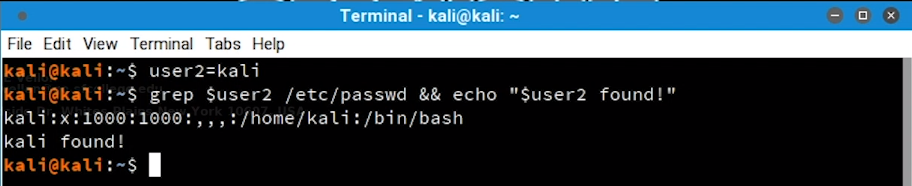
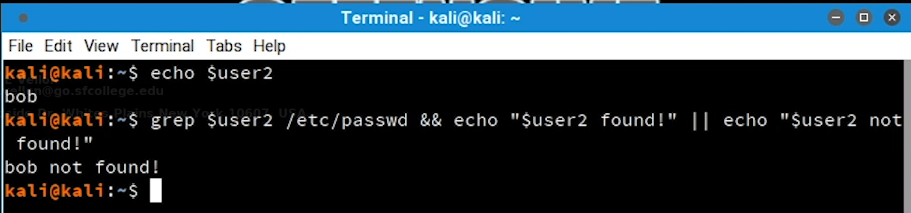
&&operator, we use it when we want to execute second command only if the first command executes successfully, Lets see it in an example
- Let’s see another example with a command that returns false when executing (Here grep returns false because user2 does not exist in
/etc/passwd)

- Let’s see another example with or
||operator, This operator is opposite of&&and it executes second command only if the first command fails. Here the first command failed to find user2 and instead the second command runs
- We can use this in
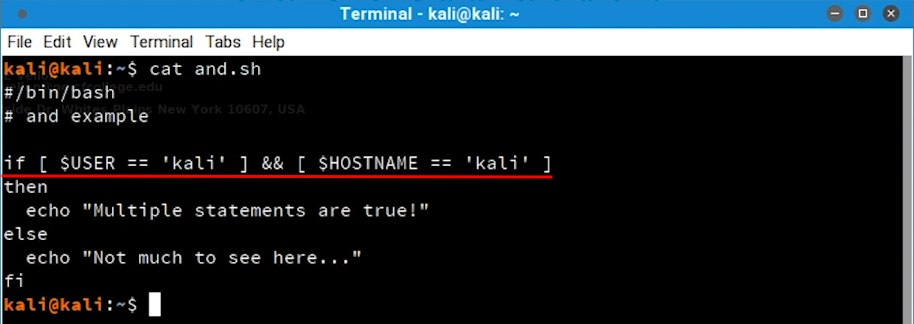
testcommands or conditions to use multiple commands to meet a specific condition. Let’s see an example that checks two conditions and runs a third command when both commands return true:

- Let’s see previous example with or
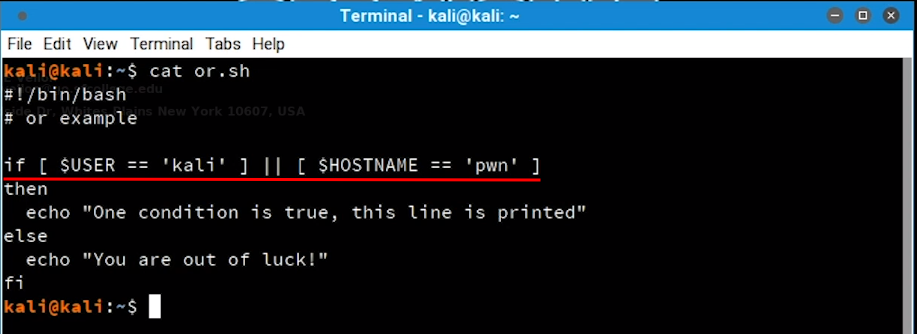
||operator and use it inifstatement, Here only one of them has to be true to meet the condition and enter theifbranch

5 - LOOPS
- In programming loops are used when we want to run a command several times until a specific condition is met
- In bash two most predominant loops commands are
forandwhile
5.1 - FOR LOOPS
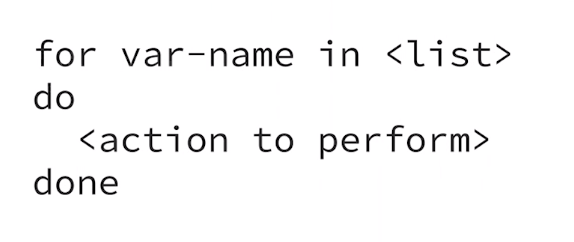
- This type of loop is used to perform given set of commands for each item in the loop
- This loop grab items from list, execute command for each item and moves to the next item in the list and repeat the steps until the list is over
- Lets look at an example
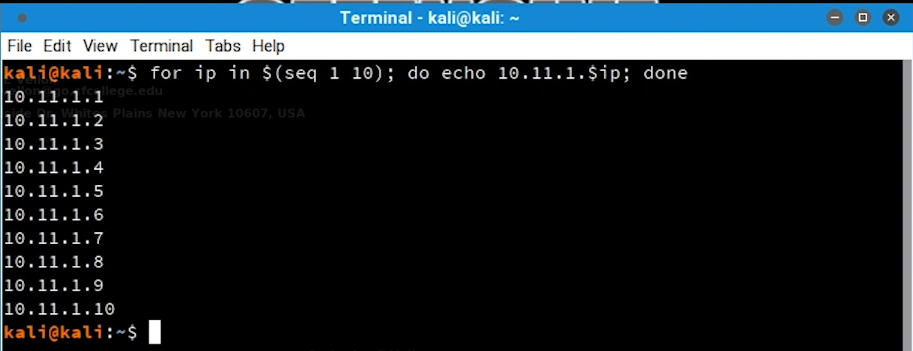
- This one-liner bash command executes a
seqcommand to generate numbers from 1 to 10 - Then assign each number to
ipvariable - Then prints each ip address according to the numbes
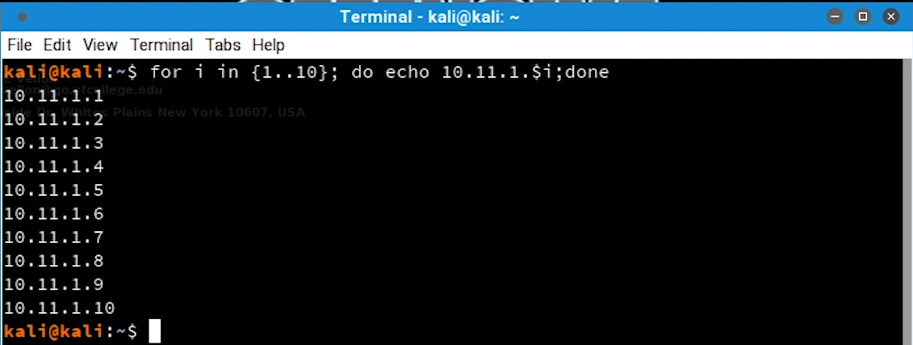
- We can rewrite this loop with Linux brace expansion
- This syntax
{1..10}is called sequence expression - We can use this for loop to generate range of IP addresses and run nmap for each of them
5.1 - WHLIE LOOPS
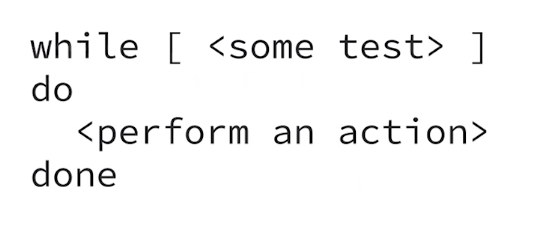
- This type of loop executes a set of commands while an specific expression is true
- It use
[]for the test command
- Let’s rewrite previous example in while loop
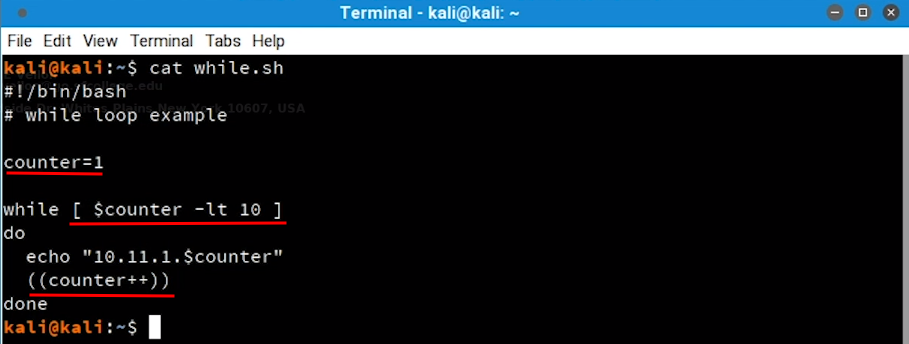
- First we initialize a variable named
counterwith value 1 - Then we put a condition that until the counter is less than 10 print the IP address
- and in each step we increment the counter variable by one until it reaches 10
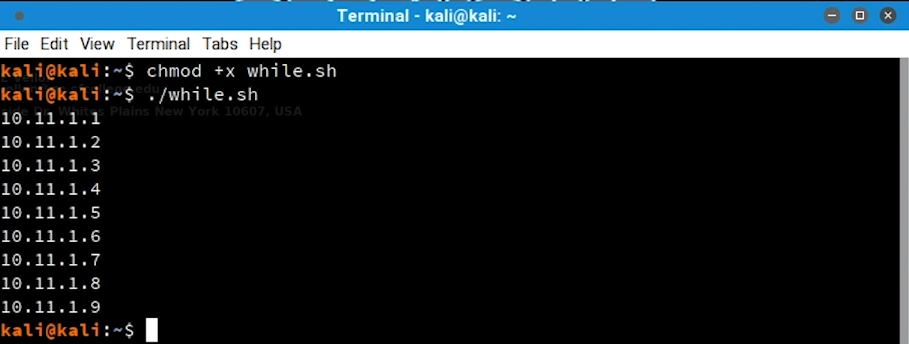
- This is not the output we expected and we don’t have IP address
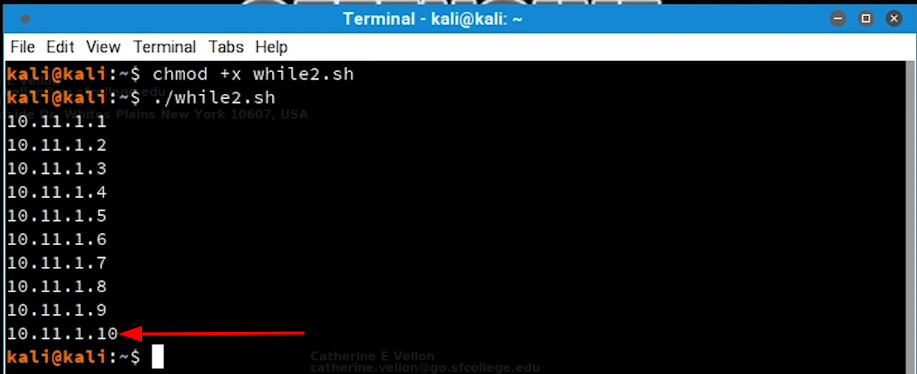
10.11.1.10here - This is because of a common mistake named
off-by-one - It is because we used
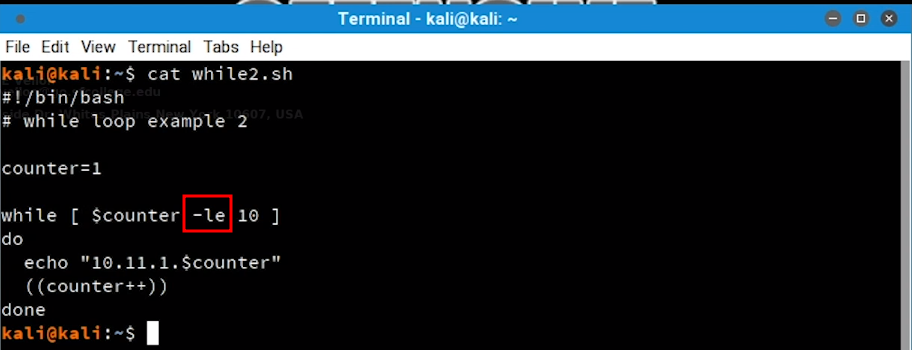
-ltoperator that means less than 10 and it does not reach 10 itself - We should use less than or equal operator
-le - Let’s fix this with a minor change
6 - FUNCTIONS
- Functions are piece of code that can be used multiple times without rewriting it
- There are blocks od code and sub-routine that can be called and executed whenever needed
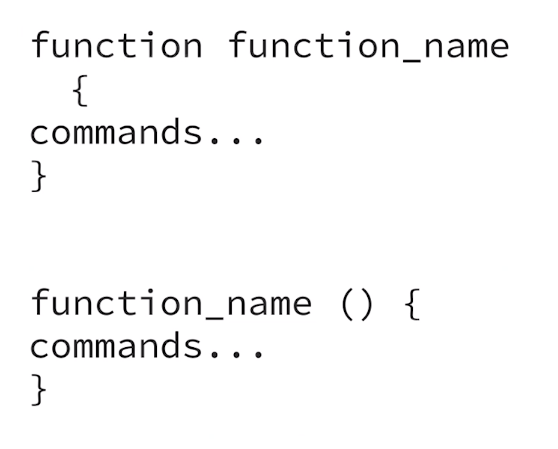
- There are two different formats for them, First one id familiar to bashs scripters and the second one is familiar to
Cprogrammers (They are same in terms of functionality)
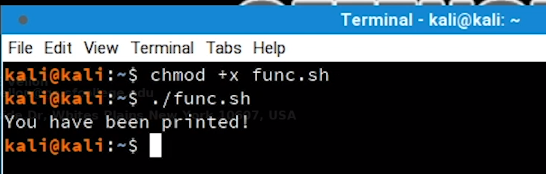
- Let’s see an example for simple functions without arguments:

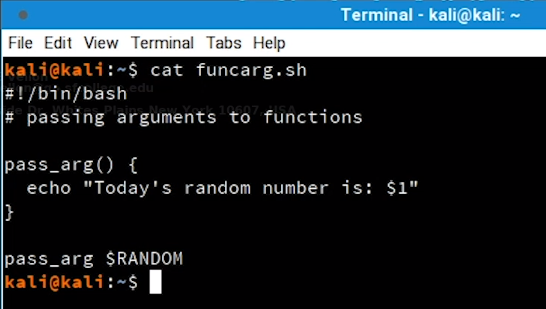
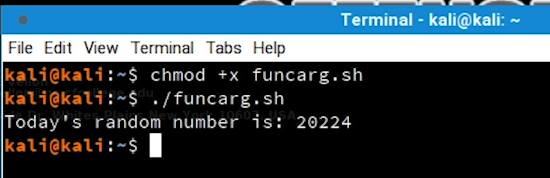
- Here is another example for function with arguments
- arguments are not declared in parentheses and they can be used with numbers (
$1...$n) inside function - Function declaration should be before functions call
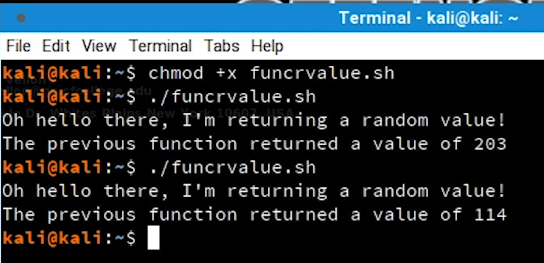
- If we want to return value in traditional programming way we can’t because bash won’t let us to do so
- We can just return a status code like 0 for success and non-zero for failure and we can access it with
$? - If we want to return a custom value we can use a global variable and change its value inside function

- If we use just return keyword inside function, the last status code would be rerurned instead
Variables Scope
- scope of a variable means from where that variable is accessible
- Global varialbes can be accessed from every part of the bash script
- Local variables can just be accessed from where that varialbe is defined (It can be function or sub-shell)
- If we want to define and use a local varialbe with same name as some global variable we can set value to it like this so we won’t change global variables value
local name="Kourosh"
- Let’s see an example for local and global variables
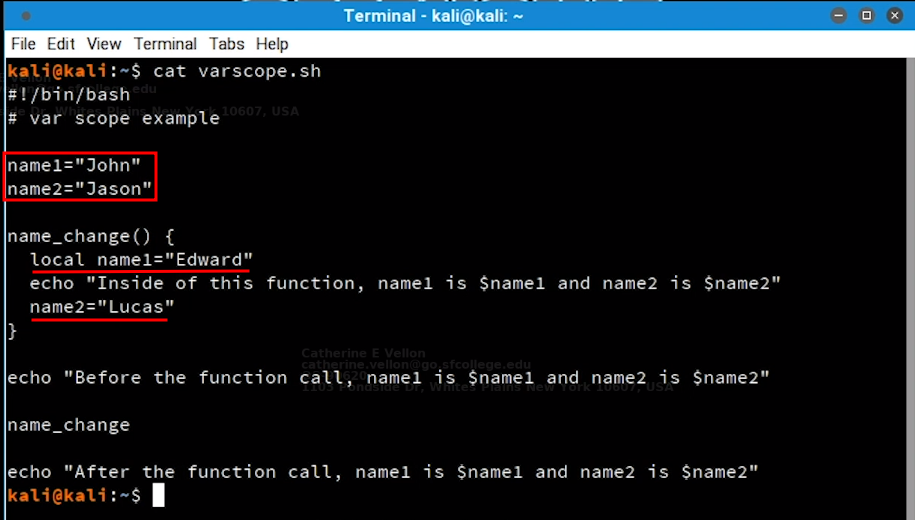
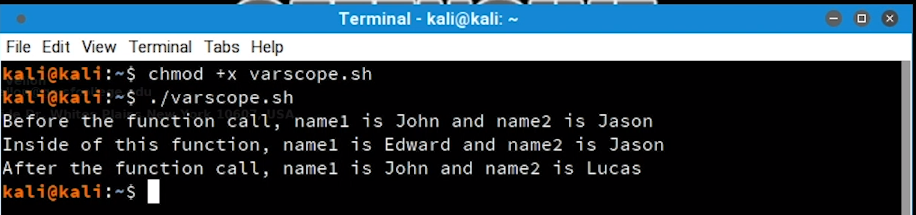
- We see that changing value of a local variable with same name as a global variable will not change the global variable’s value
- We also saw that changing the value of a global value inside function will affect its value in every part of bash script
7 - PRACTICAL EXAMPLES
- Here we want to do some practical examples with what we’ve learned so fat
7.1 - PRACTICAL BASH USAGE – EXAMPLE 1
- Here we want to obtains list of subdomains of
www.megacorpone.comand their corresponding IP addresses - First let’s use
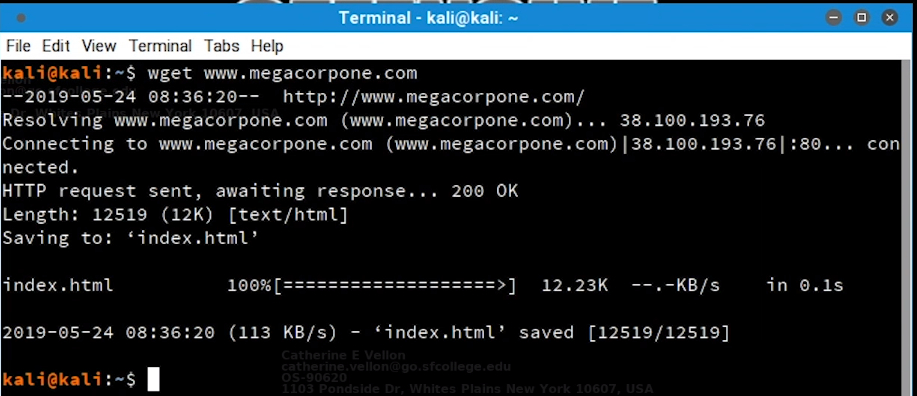
wgetto getindex.htmlof the website
wget www.megacorp.com
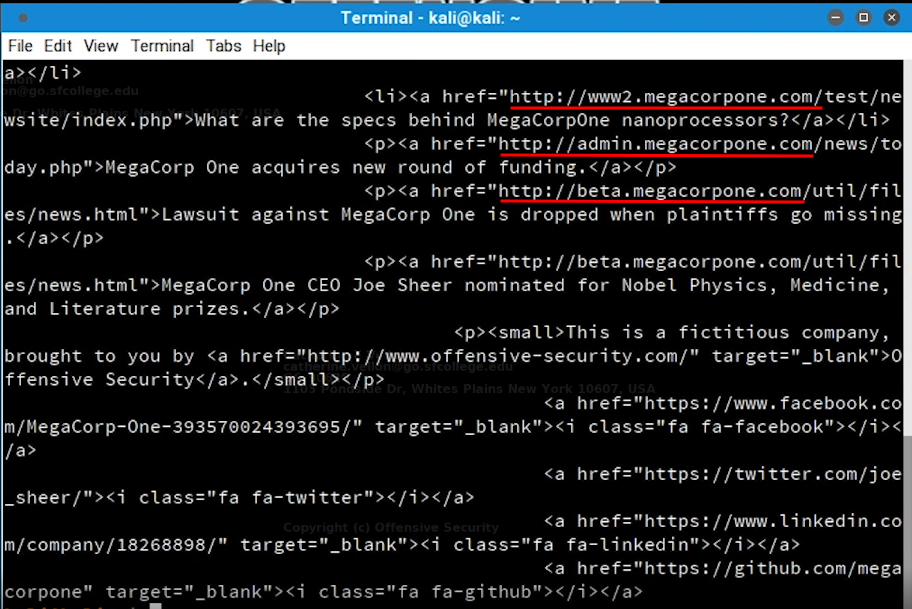
- Next, we will search for links inside the
index.htmlwebpage withgrepcommand
grep "href=" index.html
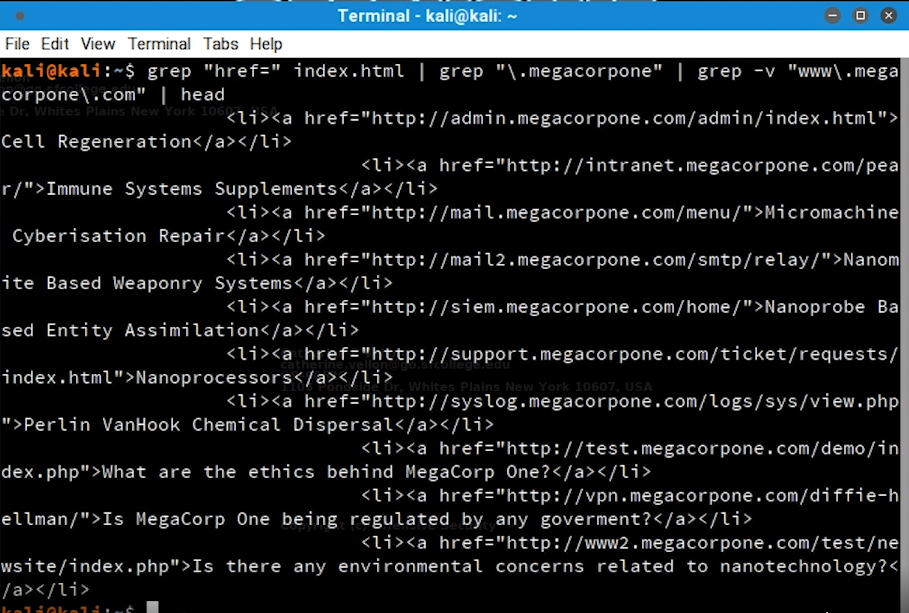
- Next, we will search for
megacorponewithgrep
grep "href=" index.html | grep "\.megacorpone" | grep -v "www\.megacorpone\.com" | head
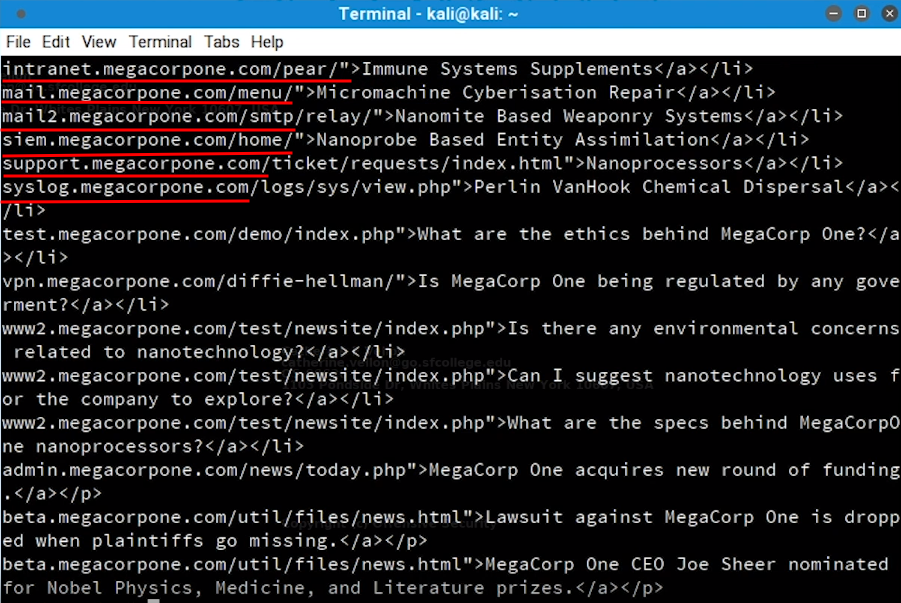
- Next we will split our output with
http://and pick second element which would be the subdomain link and remaining lines data withawkcommand
grep "href=" index.html | grep "\.megacorpone" | grep -v "www\.megacorpone\.com" | awk -F "http://" 'print {$2}'
- Next we will use
cutto split output with/and pick first element which would be the subdomaingrep "href=" index.html | grep "\.megacorpone" | grep -v "www\.megacorpone\.com" | awk -F "http://" 'print {$2}' | cut -d "/" -f 1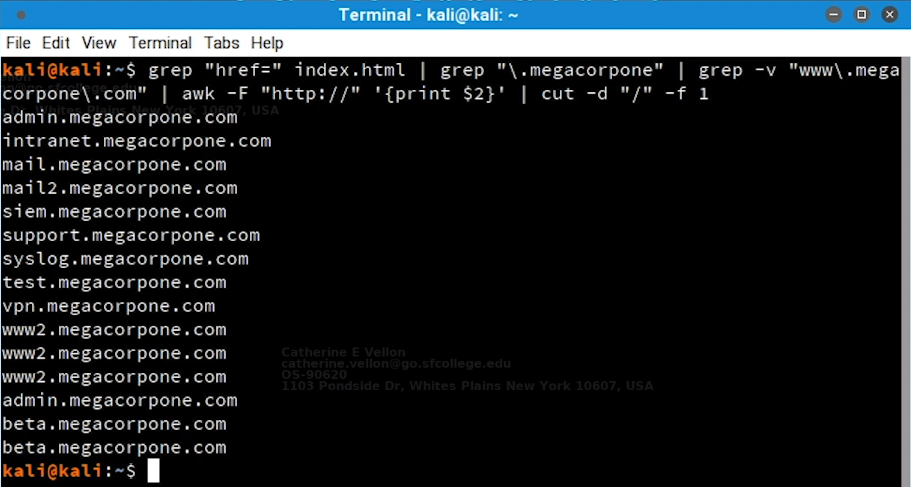
- We can simplify these steps with regex
grep -o "[^/]*\.megacorpone\.com" index.html | sort -u > list.txt
# grep -o only returns strings defined in reqex
# [^/]* means every character except /
# \. means we wanna treat . as normal character not regex syntax

- Next we can use
hostcommand to resolve the subdomain and find it’s IP address with a bash one-liner
for subdomain in $(cat list.txt); do host $subdomain; done
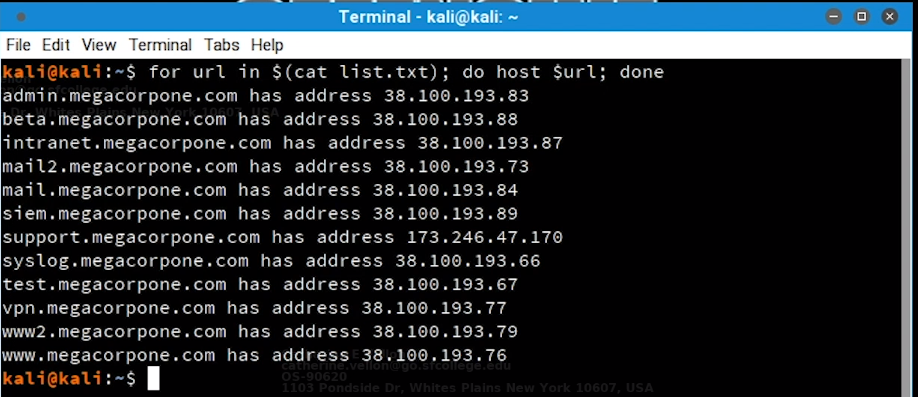
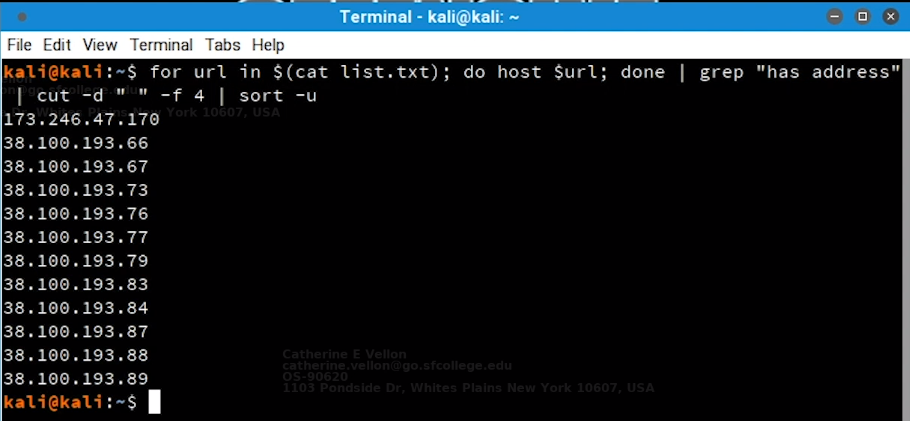
- Some subdomains may not have an IP address, for this we just grep for those which has
has addressin their output
for subdomain in $(cat list.txt); do host $subdomain; done | grep "has address" | cut -d " " -f 4 | sort -u
# grep "hass address" searchs for lines which has ip address
# cut -f " " -f 4 separates by " " and pick forth element which is IP address
# sort -u sorts the results
7.2 - PRACTICAL BASH USAGE – EXAMPLE 2
- In this example we are in the middle of penetration test and we have unprivileged acces on a windows machine
- Consider we wanna look for an exploit which has
afdinside it but we can not remember - We can use bash scripting to find it easily on exploit-db
searchsploit afd windows -w -t | grep http | cut -f 2 -d "|"

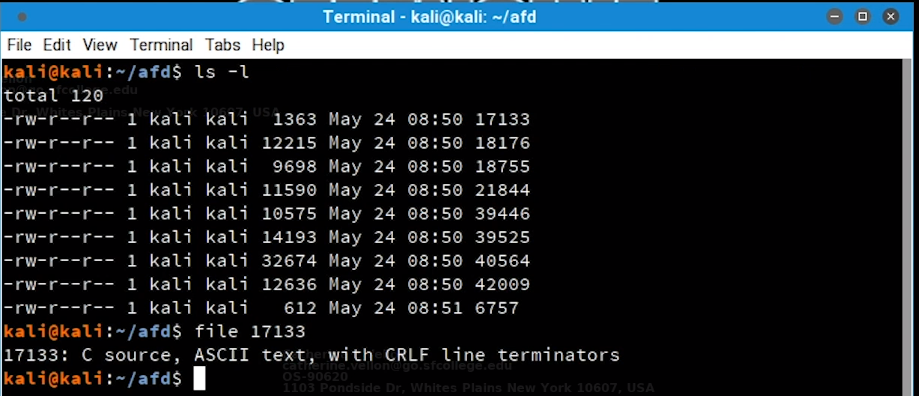
- We can use the exploits raw link to download the exploits in a for loop
for e in $(searchsploit afd windows -w -t | grep http | cut -f 2 -d "|"); do exp_name=$(echo $e | cut -d "/" -f 5) && url=$(echo $e | sed 's/exploits/raw/') && wget -q --no-check-certificate $url -O $exp_name; done

# for iterates inside exploits
# exp_name extracts the exploit name/ID from the link
# sed replaces exploit with raw to generate raw exploit link
# && wget downloads the exploit if the previous command exists with success
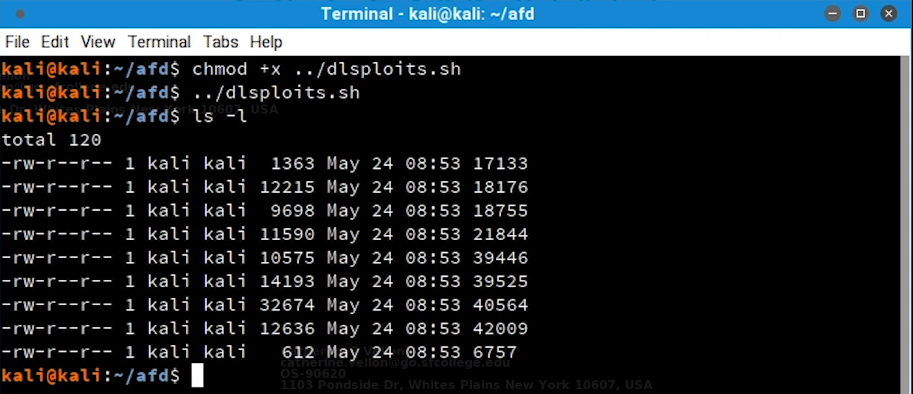
- We can make the bash one-liner clean:
#!/bin/bash
# Bash Script to search for a given exploit and download all matches.

for e in $(searchsploit afd windows -w -t | grep http | cut -f 2 -d "|")

do
	exp_name=$(echo $e | cut -d "/" -f 5)
	url=$(echo $e | sed 's/exploits/raw/')
	wget -q --no-check-certificate $url -O $exp_name
done
7.3 - PRACTICAL BASH USAGE – EXAMPLE 3
- Let’s consider we are inside a network during a penetration testing and we want to scan entire network for web servers
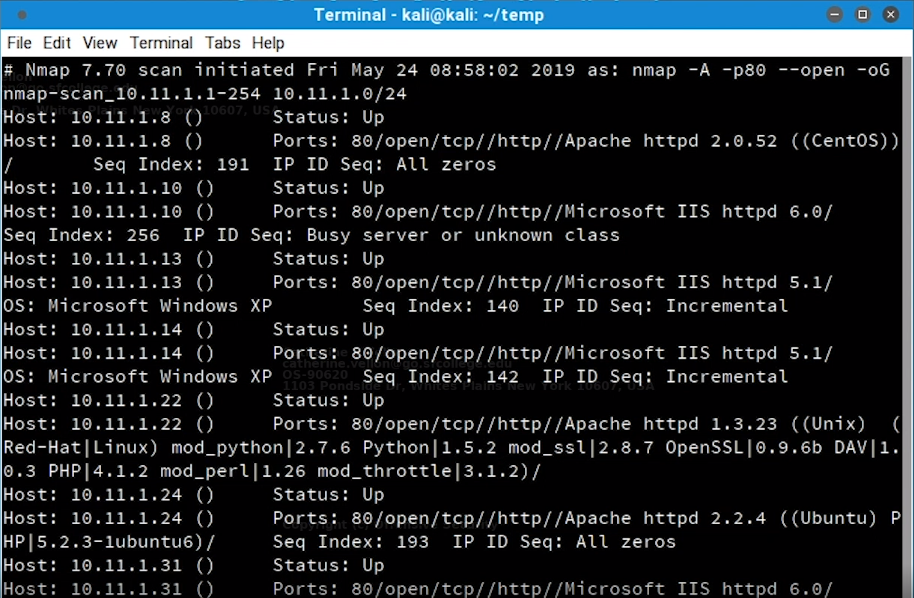
- First we can start with
nmapto find 80 open ports
sudo nmap -A -p80 --open 10.11.1.0/24 -oG nmap-scan_10.11.1.1-254
# -A is for aggressive mode
# -p80 scan just for port 80
# --open only shows open ports
# -oG is for write output to file
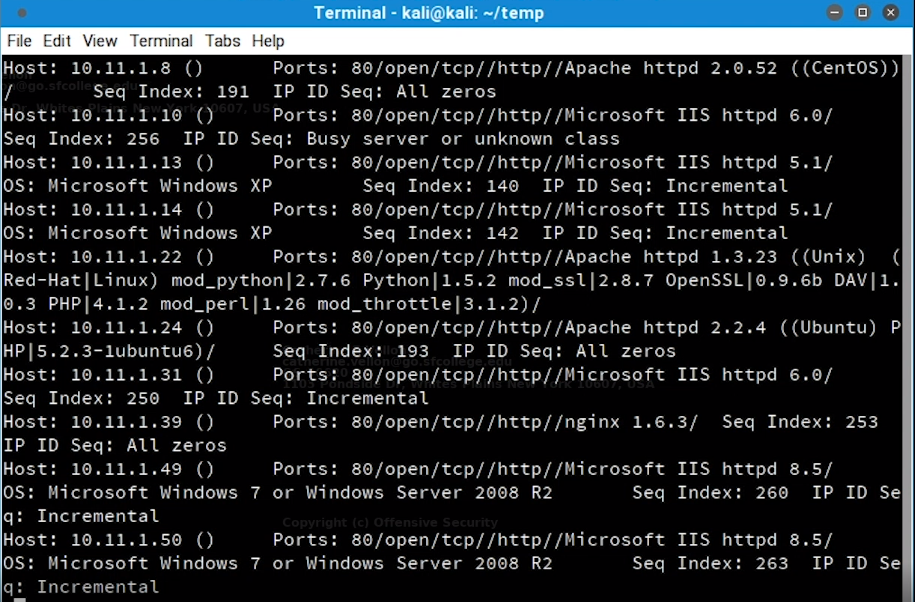
- Let’s now grep for port 80 and see the result
cat nmap-scan_10.11.1.1-254 | grep 80 | grep -v "Nmap"
- Let’s extract just IP addresses with
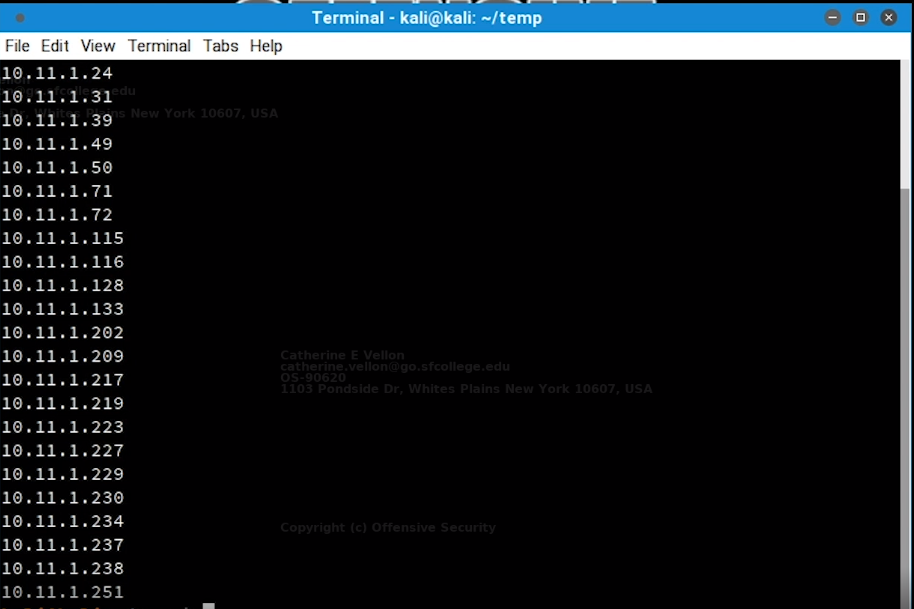
awkcommand, These are IP addresses inside network which their port 80 are open
cat nmap-scan_10.11.1.1-254 | grep 80 | grep -v "Nmap" | awk '{print $2}'
- Let’s use
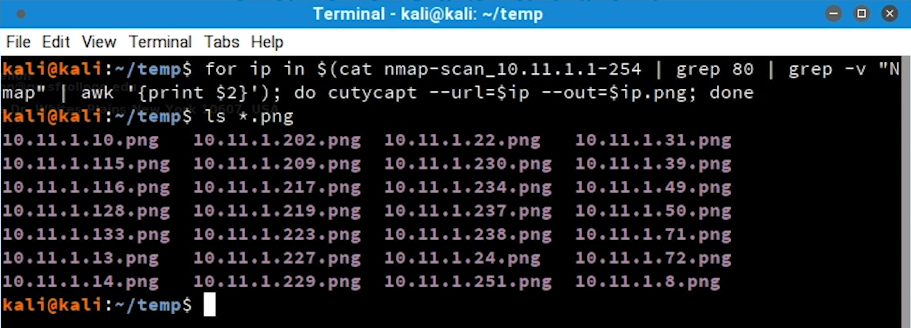
cutycapttoo render the webpages and take screenshots from them
for ip in $(cat nmap-scan_10.11.1.1-254 | grep 80 | grep -v "Nmap" | awk '{print $2}'); do cutycapt --url=$ip --out=$ip.png; done
# --url specify target website
# --out specify the output png file
- In the end let’s put all these screenshots inside HTML file with
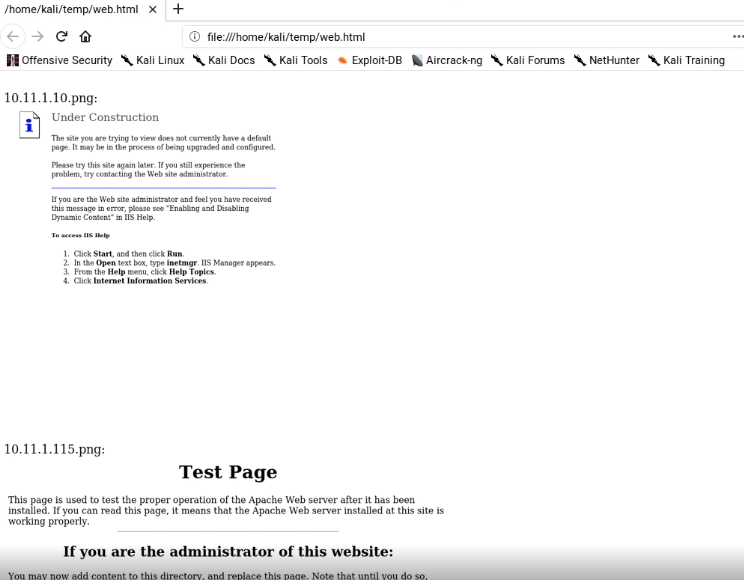
imgtag to see them all effectively
#!/bin/bash
# Bash Script to examine the scan results through HTML.

echo "<HTML><BODY><BR>" > web.html

ls -l *.png | awk -F : '{ print $1":\n<BR><IMG SRC=\""$1""$2"\" width=600><BR>"}' >> web.html

echo "</BODY></HTML>" >> web.html
Learning to use bash effectively allows you to do large amount of tasks and tests automatically